- Best Steam Deck Dock in 2026: The Short Ranking
- Steam Deck Dock Comparison (Prices as of October 2026)
- What a Steam Deck Dock Actually Does
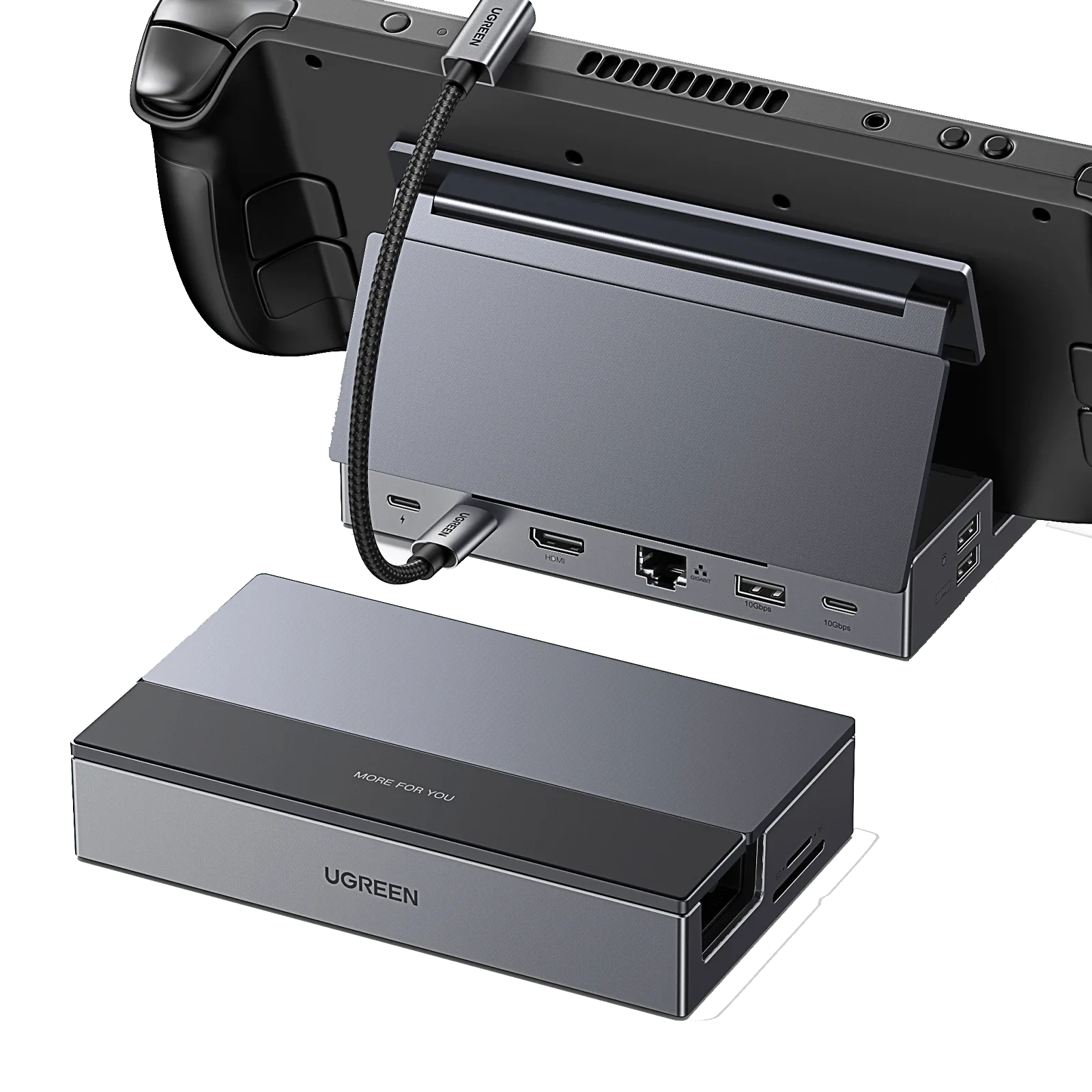
- The UGREEN 9-in-1: Best Fit for Most TV Setups
- Is Valve's Official Steam Deck Dock Worth It?
- Cheaper and Pricier Options
- How to Connect a Steam Deck to a TV
- Skip These
- FAQ
If you just want the answer: for one TV, buy the UGREEN 9-in-1 Steam Deck dock. It has HDMI 2.0 (4K at 60Hz), Gigabit Ethernet, four USB ports, and card slots, and Gizmodo lists it at $60 regular. Buy Valve's official dock ($79 on Steam) only if you want a power supply in the box or a second display on DisplayPort. Bring your own charger with any third-party dock, because none of the ones below include one.
- One TV, wired internet, a few controllers: UGREEN 9-in-1.
- Tightest budget, basic ports: JSAUX HB0602.
- Two displays, or you want the charger in the box: Valve's dock.
- A 120Hz TV or monitor: BenQ GR10, and only then.
Best Steam Deck Dock in 2026: The Short Ranking
Here is the order I'd put them in for most people, with the reason for each spot. Prices are as listed on the sources named, and all four are explained in more detail further down.
- UGREEN 9-in-1, best overall for one TV. Gizmodo listed it at $60 regular in July 2026. Of the four docks in our table, it's the only one with Gigabit Ethernet, 10Gbps USB and SD plus microSD slots listed together. No charger in the box.
- Valve's official dock, best for two displays or an in-box charger. $79 on Steam's store page as of October 3, 2026. Valve's spec page lists HDMI 2.0 plus DisplayPort 1.4 and a power supply with a 1.5 m cable.
- JSAUX HB0602, best on a tight budget. JSAUX lists HDMI 2.1 at 4K/120Hz. Dad with a Deck found 100Mbps Ethernet and USB-A 2.0 only. Current price not confirmed.
- BenQ GR10, best only if your display runs 120Hz. About $109 per ARVR Tips, with HDMI 2.1 and 2.5GbE per BenQ.
On Valve's price: its Steam store data showed $79.00 with no discount on October 3, 2026, so $79 is the standing price, not a sale. The dock launched at $89, so it now costs $10 less than at launch.
Steam Deck Dock Comparison (Prices as of October 2026)
| Dock | Price | Video out | USB | Ethernet | Charger in box |
|---|---|---|---|---|---|
| UGREEN 9-in-1 | $60 regular, $40 Prime deal in July (Gizmodo) | HDMI 2.0, 4K/60Hz | 2x USB 3.2 Gen 2 (A + C), 2x USB-A 2.0, SD + microSD | Gigabit | No |
| Valve Steam Deck Docking Station | $79 (Steam store, Oct 3, 2026) | HDMI 2.0 + DisplayPort 1.4, up to 4K/60Hz or 1440p/120Hz | 3x USB-A 3.1 Gen 1 | Gigabit | Yes (1.5 m cable) |
| JSAUX HB0602 | Not confirmed (JSAUX's store starts at $39.99 for its 6-in-1) | HDMI 2.1, 4K/120Hz | 2x USB-A 2.0 | 100Mbps | No |
| BenQ GR10 | About $109 (ARVR Tips) | HDMI 2.1, 4K/120Hz | 2x USB-A + 1x USB-C, 10Gbps | 2.5GbE | No (100W PD input) |
Sources: Valve's dock spec page, Valve's Steam store listing, MakeUseOf, Dad with a Deck, JSAUX, BenQ, and ARVR Tips. Promo prices move, so check the current price at Amazon before you buy.
What a Steam Deck Dock Actually Does
A dock turns the Deck's one USB-C port into what a TV setup needs. Valve's tech specs list that port as USB 3 Gen 2 with DisplayPort, rated for up to 8K at 60Hz or 4K at 120Hz. The same port takes power from the 45W charger that ships with the Deck. The only other connections are a 3.5mm headphone jack and a microSD slot, and there is no HDMI port.
So a good dock does four things: passes power through so the Deck charges while you play, outputs HDMI at a resolution your TV can show, adds USB-A for controllers, and optionally adds Ethernet. A dock can't output more than the Deck sends it, and in practice the dock's HDMI port is the limit. HDMI 2.0 tops out at 4K/60Hz, which is plenty for a handheld whose own screen is 1280x800.
The UGREEN 9-in-1: Best Fit for Most TV Setups
For about $60, the UGREEN 9-in-1 covers the ports that matter without overbuilding. Per Gizmodo and UGREEN's listing, you get two USB 3.2 Gen 2 ports (one A, one C) at up to 10Gbps, two USB-A 2.0 ports for dongles and keyboards, SD and microSD slots, Gigabit Ethernet, and HDMI 2.0 at 4K/60Hz. MakeUseOf's review says the port selection covers the main use cases.
UGREEN lists up to 100W of USB-C PD passthrough. The Deck's own charger is 45W, so the dock isn't the limit. But MakeUseOf's drawbacks list is blunt: no power supply is included. The Deck's 45W brick works. Gizmodo says the dock also suits the ROG Ally, Legion Go, and ROG Xbox Ally, and the newly announced ROG Xbox Ally X20 should fit based on its port layout. It hasn't shipped, so I can't confirm that.
Reviewers name a few gaps. Gaming PC Guru points out there's no DisplayPort output. MakeUseOf says the Deck needs to sit off-center to keep its vents clear, that the dock can get hot if the Deck sits centered while pushing its hardware, and that the side ports are awkward to reach while docked. With only two USB-A 2.0 ports, a keyboard, mouse, and wired controller will crowd it; that part is my read of the spec sheet, not a measured result.
Is Valve's Official Steam Deck Dock Worth It?
Short answer: not for a single TV, yes for two displays or a no-fuss box. Valve's Steam store listing shows $79 as of October 3, 2026. It launched at $89, so check the page for the current price.
Per Valve's dock specs, it has HDMI 2.0, DisplayPort 1.4, three USB-A 3.1 Gen 1 ports, and Gigabit Ethernet. Valve says it supports "up to 4k 60hz, or 1440p 120hz," with FreeSync and multi-monitor over MST. The included power supply has a 1.5 m cable, and the dock measures 117 x 29 x 50.5 mm and weighs about 120 grams. The Deck connects through a 6-inch captive USB-C cable. That in-box charger narrows the price gap with third-party docks.
What it gives up: card slots and a USB-C data port, both of which the UGREEN has. Tom's Hardware headlined its review "Nice, But Far From Required", and owners aren't uniformly happy: one ResetEra poster called the official dock experience "exceptionally poor" across several TVs, ports, and cables. That's one user report, not a measurement.
Cheaper and Pricier Options
JSAUX HB0602 is the budget route. JSAUX's page lists HDMI 2.1 at 4K/120Hz and 100W PD. Dad with a Deck's review confirms two USB-A 2.0 ports, a 100Mbps Ethernet port, a built-in USB-C cable, and no charger in the box. It's fine if you don't need card slots or Gigabit speeds.
BenQ GR10 sits at the premium end. BenQ lists HDMI 2.1 (4K/120Hz or 1080p/360Hz), 2.5Gb Ethernet, and 10Gbps USB ports. GamesRadar's review takes up whether you need a 120Hz display to use it. If your TV tops out at 60Hz, you're paying for headroom you can't use.
How to Connect a Steam Deck to a TV
To connect a Steam Deck to a TV, plug a dock's HDMI output into the TV, plug a USB-C charger into the dock, then plug the dock's USB-C cable into the Deck's top port. The TV should show the Deck's screen once it wakes.
- Connect the dock's HDMI (or DisplayPort) output to your TV or monitor.
- Plug the charger into the dock's power input.
- Plug the dock's USB-C cable into the port on top of the Deck.
- Wake the Deck and set the TV to the right HDMI input.
- Pair or plug in a controller, since the Deck's own controls are awkward to reach once it sits in a dock.
No dock? A USB-C to HDMI cable works, but it takes the Deck's only port, so you can't charge at the same time unless the adapter has its own power passthrough.
Why Is My Steam Deck Dock Showing No Signal?
If the TV stays black, the fixes owners report most often are a hard power-off of the Deck, re-plugging the dock's power after connecting the Deck, and changing the TV's HDMI mode. These are user workarounds, not Valve guidance, and results vary by TV age and model.
Owners in the Steam Deck Docking Station discussions report these fixes:
- Hard power off the Deck, then restart it.
- Unplug the dock's power, connect the Deck, then plug power back in.
- Toggle the TV's "HDMI Ultra HD" setting (one Philips owner switched between Standard and Optimal), or turn off features like Adaptive-Sync or "True Depth Color."
- Turn off "Automatically Set Resolution" and pick your display's resolution by hand.
- Install the latest Steam Deck update; some owners say recent updates improved HDMI compatibility.
If none of that works, try the TV's other HDMI ports to rule out a single bad input.
I label every cable on my own desk with a label maker, and the dock's power brick is the one I'd label first: two identical black bricks behind a TV stand is how the wrong one gets unplugged.
A dock handles docked play. For the storage card, case, and screen protector that cover everyday handheld use, see our roundup of the accessories actually worth buying.
Skip These
- USB-C to HDMI adapters with no power passthrough. They take the Deck's only port, so you can't charge while you play.
- The BenQ GR10 with a 60Hz TV. It's built for 4K/120Hz output, which a 60Hz screen can't show.
- Valve's dock for a single TV. PCGamesN's best docks roundup calls it one of the priciest docks it has tried. It earns its price with two displays or if you value the in-box charger.
- Any dock that doesn't publish its specs. If a listing doesn't state its HDMI version, USB speeds, and PD wattage, move on. Every dock above has independent reviews you can read.
FAQ
What is the best dock for the Steam Deck?
For most people with one TV, it's the UGREEN 9-in-1, for its Gigabit Ethernet, card slots, and 10Gbps USB at $60 regular per Gizmodo. Choose Valve's dock for two displays and an in-box charger, or the JSAUX HB0602 for the lowest price with basic ports.
What is the best Steam Deck dock for 4K at 120Hz?
The JSAUX HB0602 and BenQ GR10 are the two docks here that list HDMI 2.1 at 4K/120Hz, per JSAUX and BenQ. The GR10 adds 2.5GbE and 10Gbps USB for about $109 (ARVR Tips). Valve's dock tops out at 4K/60Hz or 1440p/120Hz, and the UGREEN at 4K/60Hz. You also need a TV or monitor that accepts a 120Hz signal.
Is Valve's Steam Deck dock on sale or at its regular price?
Steam's store data showed $79.00 with no discount on October 3, 2026, so $79 is its regular price. Valve's dock launched at $89 per Notebookcheck. Check the store page before you buy, since Valve can run sales.
Does the Steam Deck have an HDMI port?
No. The Steam Deck has a single USB-C port with DisplayPort output. To reach an HDMI TV you need a dock or a USB-C to HDMI adapter, and a dock is the better choice because it also charges the Deck while you play.
Do you need Valve's official dock?
No. Any dock that supports USB-C DisplayPort output and USB-C Power Delivery works with the Steam Deck. Valve's dock earns its price if you want both HDMI and DisplayPort outputs, three USB-A 3.1 Gen 1 ports, or a power supply in the box. For a single TV, the UGREEN or JSAUX covers the same job for less.
Does the Steam Deck charge while docked?
Yes, as long as the dock's power input is connected to a USB-C PD charger. Valve ships the Deck with a 45W charger, and the Deck's tech specs list that as its supply. The UGREEN, JSAUX, and BenQ docks don't include a charger, so reuse the Deck's own.
Does the JSAUX HB0602 have Ethernet?
Yes, but it's 100Mbps, not Gigabit, per Dad with a Deck's review. The UGREEN and Valve docks are Gigabit; the BenQ is 2.5GbE.
Should you wait for Steam Deck 2 before buying a dock?
There's no reason to. A USB-C dock isn't tied to one handheld; Gizmodo's coverage lists the UGREEN as working with the ROG Ally, Legion Go, and ROG Xbox Ally, and nothing Valve has said so far points to a different connector. For the latest on timing, here's where Steam Deck 2 actually stands.
What we couldn't verify: we haven't run these docks ourselves, so port counts and speeds come from the makers' pages and the reviews linked above, and the no-signal fixes are owner reports. We couldn't confirm JSAUX HB0602's current price, BenQ's price on its own page (the $109 figure is from ARVR Tips), or the UGREEN's price today beyond Gizmodo's July figures.
Updated October 3, 2026: rewrote the opening as a direct answer; moved the comparison table to the top with dated prices (Valve's dock confirmed at $79 on Steam); added a section on whether Valve's official dock is worth it, a "no signal" section with owner-reported fixes from the Steam community, and a "best dock" FAQ entry; added Valve's dock dimensions and cable details from its spec page. Later the same day: added a short "Best Steam Deck Dock" ranking near the top and two FAQ entries (4K/120Hz, and whether Valve's $79 is a sale price).
 Reviews
Steam Deck Case (2026): JSAUX Pick That Fits Charger
Valve ships a case with the Steam Deck OLED, so the real question is whether you need a second Steam Deck case. If you carry a charger or dock, the JSAUX Carrying Case is built around that.
 Reviews
Steam Deck Accessories (2026): 3 Worth Buying
Most Steam Deck accessories lists pad the count with things you'll never touch. Here's the short version: a microSD card, a case and a screen protector cover what matters, plus what to add later and what to skip.
 Reviews
Steam Deck vs Switch 2 (2026): Which to Buy?
Steam Deck vs Switch 2 in October 2026: one plays your PC library, the other plays Nintendo's games and costs $289 less. Here's how to choose, from the makers' specs and independent reports.